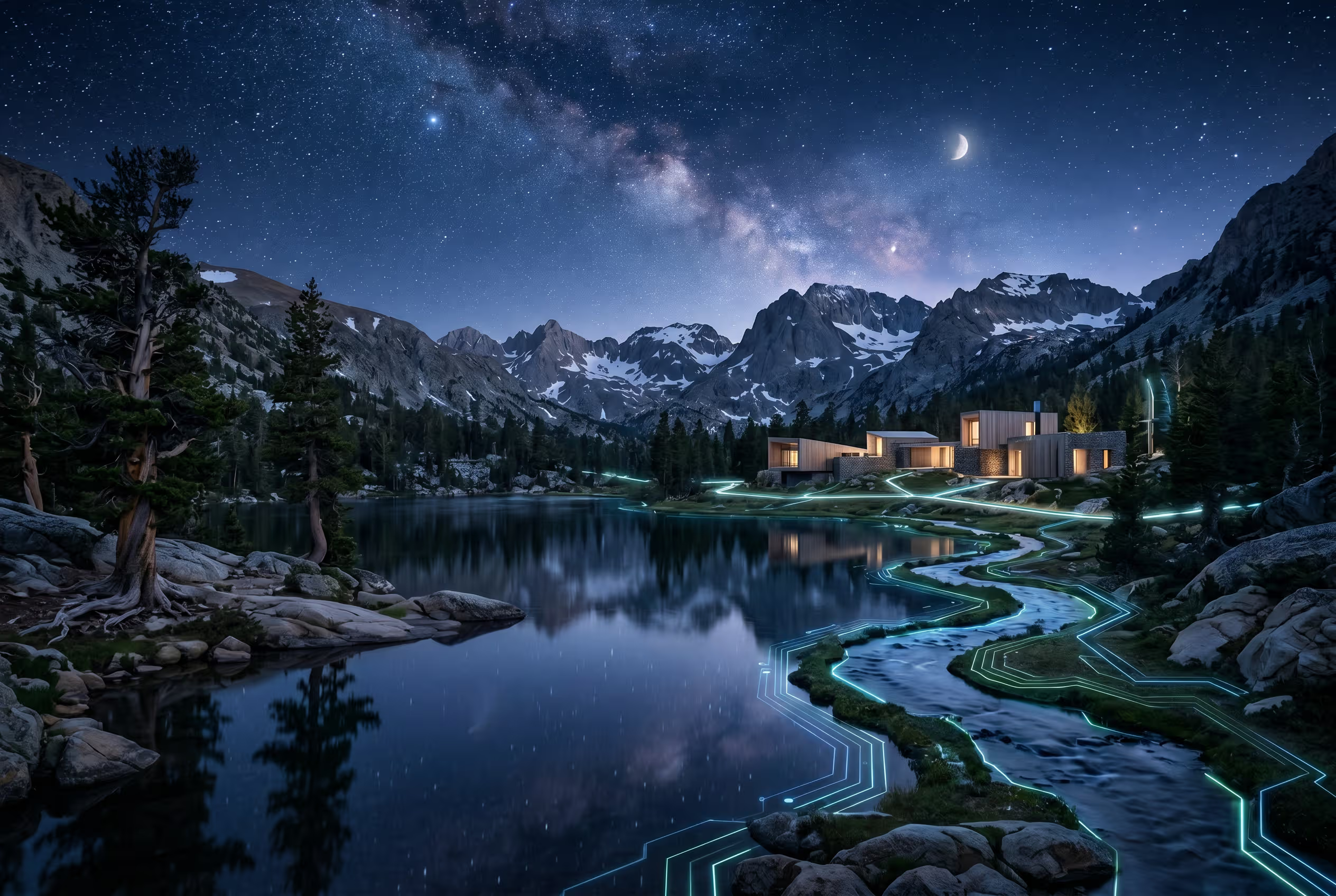
Artificial intelligence has evolved image generation from a purely text-based process into a dynamic, interactive dialogue. Creators are no longer confined to text prompts alone; they can now steer generative AI by using existing visuals to produce new and unique images. This method, known as image-to-image generation, provides artists and designers with a powerful toolkit to manipulate and refine AI art with unprecedented precision. It operates by using an input image as a visual blueprint for composition, color, and form, and then reimagining it based on new text instructions.
Controlling Style, Pose, and Composition
One of the most powerful methods for guiding an AI is by providing one or more reference images. This technique allows you to influence the final composition, artistic style, and the exact pose of subjects in the output. Instead of relying solely on descriptive text, you show the AI the visual DNA you want to replicate. For instance, a photograph with a specific character pose can be used to generate new scenes with that character, all while maintaining the original posture. Many advanced tools also allow you to adjust the "strength" of the reference image's influence, giving you granular control over how closely the result mirrors the source.
| Technique | Description |
|---|---|
| Style Reference | Use a reference image to set the artistic style. The AI adopts the color palette, textures, and lighting from your reference and applies it to a new image based on your text prompt. This is a foundational aspect of neural style transfer. |
| Composition & Pose Control | By providing a reference image, you instruct the AI on how to position subjects and arrange elements. The AI, often using models like ControlNet, analyzes the outlines, depth, and structure from your reference to create a new picture that aligns with your text description while matching the original's layout. |
Expanding and Manipulating the Canvas
Generative AI also features powerful tools for editing content within an image or expanding its boundaries. Techniques like inpainting and outpainting empower you to seamlessly add, remove, or extend parts of a picture with context-aware intelligence.
Generative Fill (Inpainting): This feature lets you select an area inside an image and, with a text prompt, fill that area with new, AI-generated content. The AI analyzes surrounding pixels to ensure the new content blends naturally with the existing image in terms of lighting, texture, and style. This is incredibly useful for adding objects, restoring damaged photos, or removing unwanted elements. You can learn more about inpainting to master this transformative skill.
Generative Expansion (Outpainting): If you have a great image that feels too tightly cropped, outpainting lets you extend its borders. The AI generates new visual information that logically and seamlessly continues the original scene. This is ideal for adapting an image to a new aspect ratio, like turning a vertical portrait into a wide banner, without resorting to cropping or stretching.
| Technique | Description |
|---|---|
| Generative Fill (Inpainting) | This technique modifies the inside of an image. It lets you select part of a picture and have the AI replace it based on a text prompt, which is perfect for removing unwanted objects or fixing imperfections. |
| Generative Expansion (Outpainting) | This technique extends the outside of an image. You can expand its borders, and the AI will fill the new space with content that logically continues the original, effectively "un-cropping" the scene. |
Refining and Enhancing Images
Beyond creating and altering content, image-to-image AI can also be used to improve the technical quality of your visuals. AI upscaling and precise object removal are two key methods for refining your pictures to a professional standard.
AI Upscaling: Low-resolution images can be a significant roadblock. AI upscaling intelligently increases an image's resolution while generating realistic detail. Unlike traditional methods that simply stretch pixels and introduce blur, AI upscalers use trained diffusion models to recognize patterns and add new pixels, resulting in a sharper, cleaner final product. Many tools can increase an image's size by two, four, or even eight times its original dimensions without significant quality loss.
Precise Object Removal: Unwanted objects can ruin an otherwise perfect shot. AI-powered object removal, often a specialized use of inpainting, offers a fast and effective way to clean up images. By simply highlighting or brushing over an object, you can direct the AI to erase it and intelligently fill in the background by analyzing the surrounding area.
| Technique | Description |
|---|---|
| AI Upscaling | AI upscaling tools increase image resolution while maintaining or improving quality. This allows you to enlarge small images without them becoming blurry or pixelated. |
| Precise Object Removal | This technique allows you to remove unwanted objects from your images. You select the object, and the AI intelligently fills the space with a background that matches the surrounding area. |
By mastering these image-to-image techniques, creators can move beyond simple text prompts and engage in a more interactive and controlled visual dialogue with AI. This opens up a new world of creative possibilities, from fine art and advertising to rapid image-to-image prototyping.
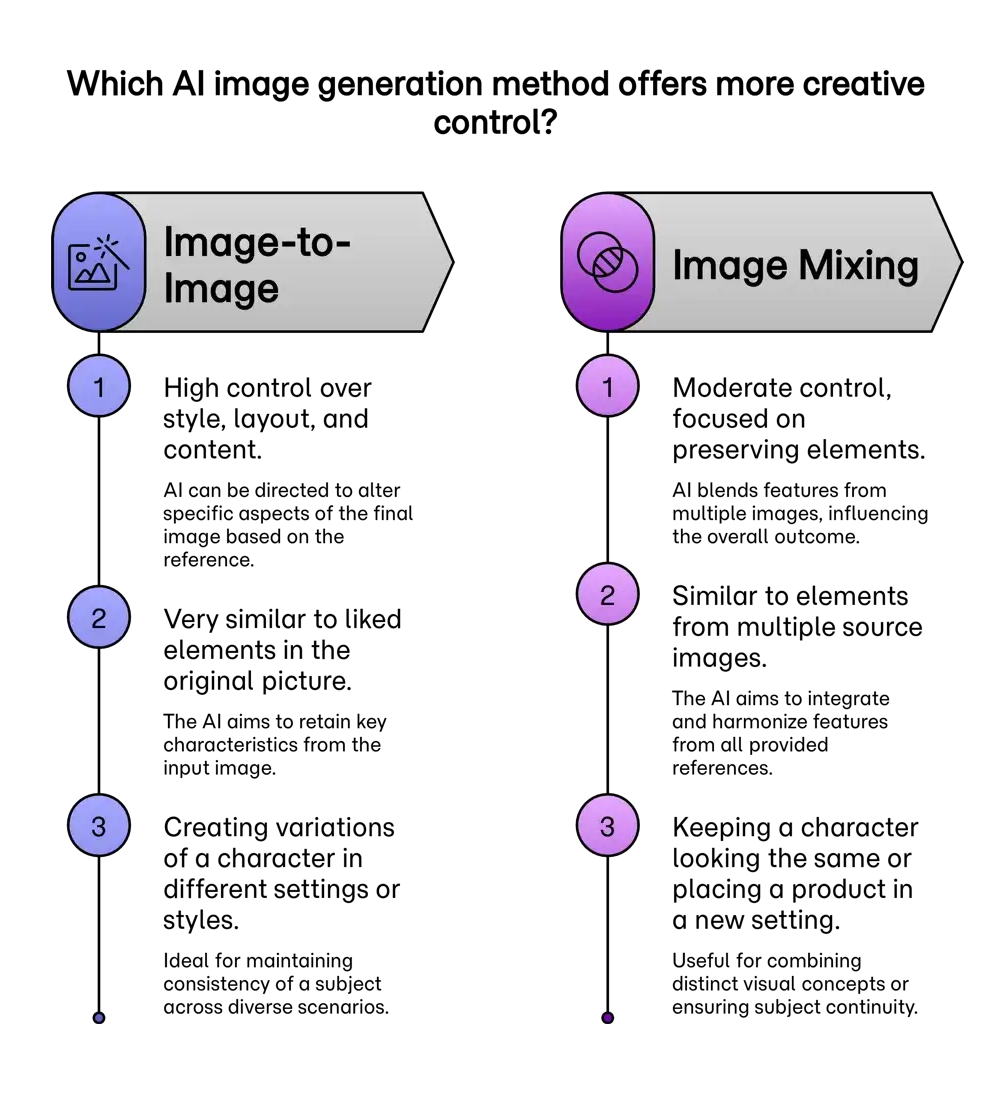
Ready to Turn Your Vision into Stunning AI Art, for Free?
Start with your idea. Write a descriptive prompt in your own voice.
Click the Prompt Rocket button to optimize it instantly.
Receive an enhanced Better Prompt in seconds.
Choose your favorite AI model and share your creation with the world.
Frequently Asked Questions
What is AI image-to-image generation?
What is the difference between inpainting and outpainting?
How can I maintain a consistent character or style across multiple images?
Can AI improve the quality of my low-resolution photos?
What is ControlNet and how does it relate to image-to-image generation?
What are some practical applications of image-to-image AI?
- Interior Design: Visualizing different styles in an existing room.
- Product Mockups: Placing a product into various scenes and styles for marketing.
- Photo Editing: Removing unwanted objects, restoring old photos, or changing the style.
- Art and Creativity: Transforming sketches into finished artworks or applying the style of one artist to another's image.
- Prototyping: Quickly creating visual concepts for products and designs.